
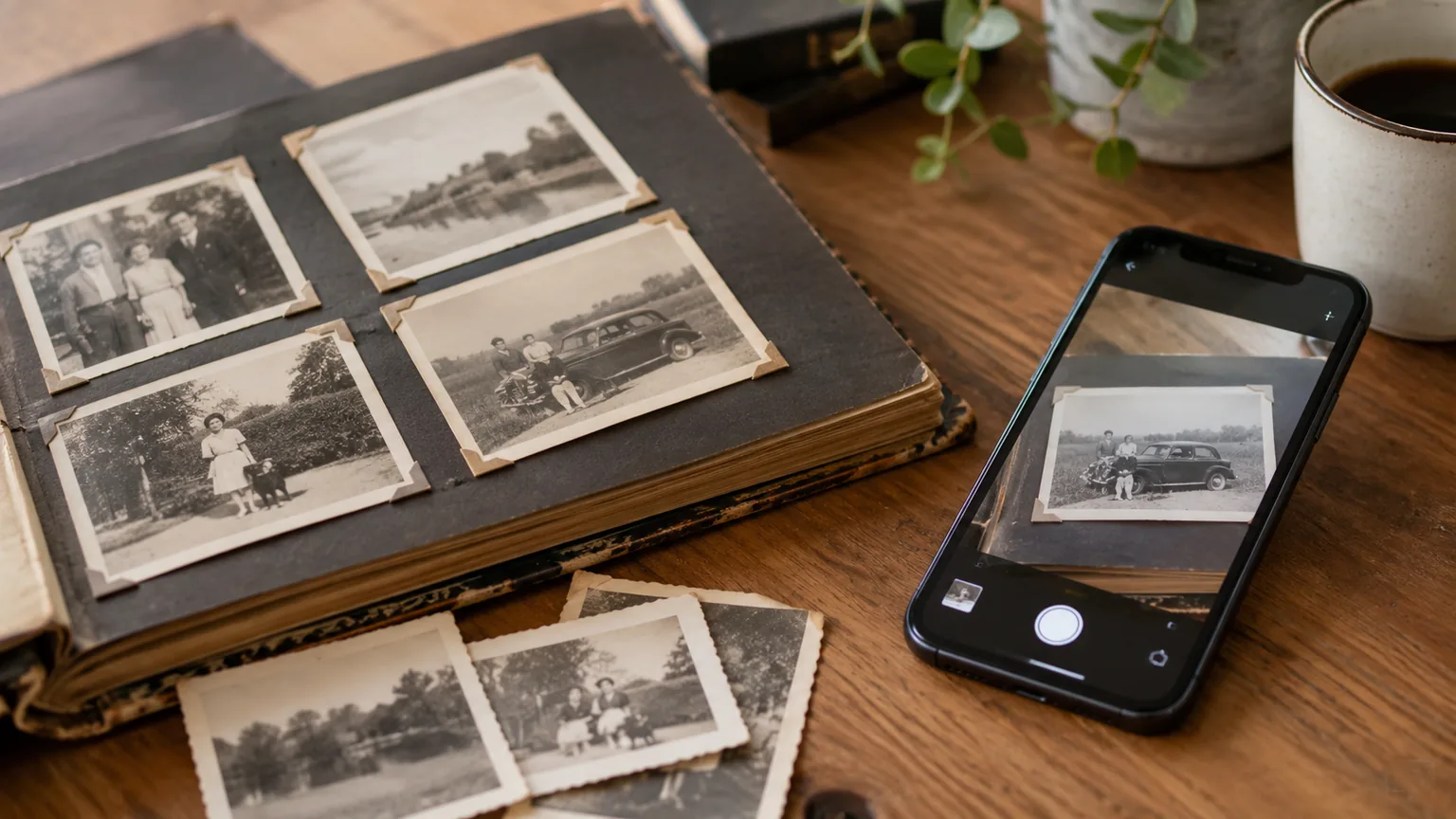
Digitising old photos for a funeral works perfectly well with your phone, as long as you pay attention to light, angle and glare. For small or especially important photos, an ordinary flatbed scanner is even better. Collecting the photos matters just as much: if everyone puts their photos in one place, before a fixed deadline, you save yourself a great deal of back and forth on messages. Below you can read how to tackle both.
Collecting photos from family and friends
The photos are usually scattered: in albums at a brother's house, on a grandchild's phone, in a box in the loft. It works best when one person takes charge of collecting and everyone else knows where to send their photos.
One shared folder
Create a shared folder or a shared album, for example in Google Photos, iCloud, OneDrive or Dropbox. Send the link to everyone who has photos. That way everything ends up in one place and you don't have to search through ten different chats.
A handy tip: ask people to note in the file name or a caption who is in the photo and roughly what year it is from. That helps later when you arrange the photos into chapters.
A clear deadline
Give a time, not just a day. "Please by Wednesday evening, 8 pm" works better than "as soon as possible". Venues often want the presentation 24 hours in advance, and at weekends sometimes 48 to 72 hours. Work back from there and keep at least a day free for choosing and putting it together. You can read more about that planning in the timeline for a funeral presentation.
It often happens that a few lovely photos still arrive after the deadline. So also agree who decides whether those go in. How many photos you need in total is shown in the table for the number of photos.
Ask for originals, not WhatsApp photos
Photos sent via WhatsApp are compressed. You won't notice on a phone, but on a big screen in the chapel such a photo can look grainy or blurry. So ask for the original files, through the shared folder, by email or with a service such as WeTransfer.
If it has to be WhatsApp after all, ask for the photo to be sent as a document rather than as a photo: via the plus (iPhone) or the paperclip (Android), then Document. That way the original file comes through. The HD option is better than the standard setting, but even then the photo is made smaller.
Digitising old photos with your phone
With a modern phone you can digitise a print perfectly well for a presentation. The quality depends mainly on how you take the photo, not on the device.
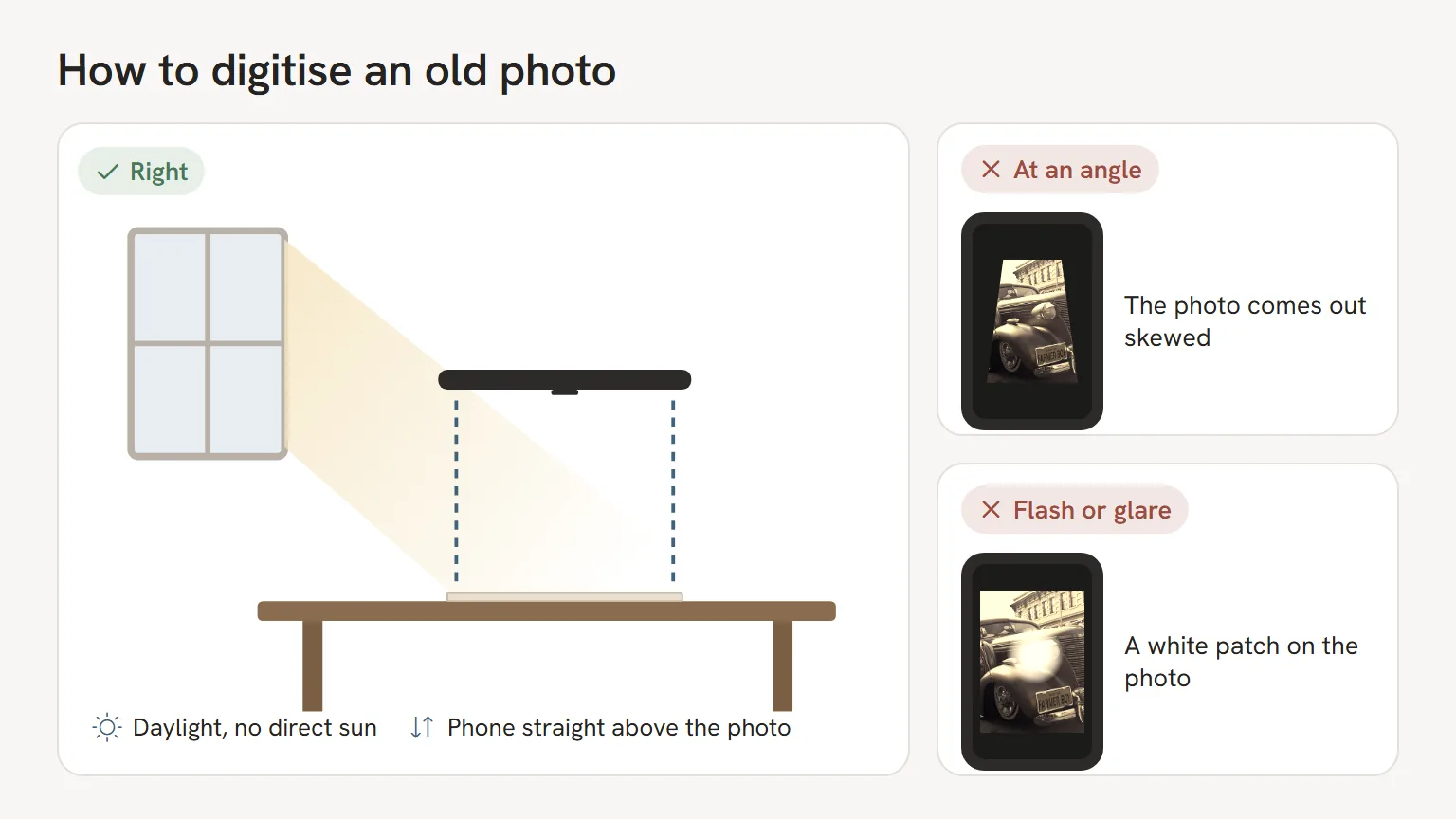
- Daylight. Lay the photo near a window, but not in direct sunlight. Soft, even light gives the best colours.
- Straight from above. Hold the phone exactly parallel to the photo. An angle makes the photo skewed and distorted.
- No flash. A flash leaves a harsh patch of light in the middle of the photo.
- Avoid glare. Glossy photos reflect light. Take photos out of plastic sleeves or from behind the glass of a frame, and tilt the photo slightly until the patch disappears.
- Fill the frame. Get close enough for the photo to fill almost the whole screen, but don't zoom in digitally.
Scanning apps
There are apps that make the job easier. A well known example is PhotoScan by Google Photos (free). The app has you photograph the picture from a few angles and uses that to remove the glare. It also crops the edges automatically and straightens the photo. The app is available for iPhone and Android, but it has not been updated for some time. If it doesn't work on your phone, choose another scanning app.
Cropping can also be done later. In our tool you can crop a photo, so that the white border or the bit of table around it disappears, for example, and rotate a photo that is on its side. A slightly crooked photo is best straightened beforehand with a scanning app.
Scanning old photos with a flatbed scanner
If you have a printer with a scanner, that is the best choice for small or especially important photos. Light and glare are no problem, and the photo always lies straight.
Choose these settings:
- 300 dpi for ordinary prints (6 x 4 inches and larger).
- 600 dpi for small photos, such as passport photos or the small square prints from the sixties and seventies. That way they stay sharp when they appear large on the screen.
- Save as JPG at the highest quality.
Put several photos on the glass at once if your scanning software can separate them automatically. That saves a lot of time with a whole album. Give the glass a quick clean first: every speck of dust gets scanned too.
Slides and negatives
Slides and negatives can't really be digitised well with a phone or an ordinary scanner. For that you need a scanner with a special attachment or a film scanner. Most people have this done at a photo shop or by a digitising service.
Do ask how long it takes, though. Not every shop can deliver within a few days. If it can't be done in time, pick out a few slides and photograph them against a light box or a bright screen as a stopgap.
Files from iPhones and other phones
iPhones often save photos as HEIC and videos as MOV. Not every program can handle these. In our tool you don't need to do anything about it: HEIC and MOV are converted automatically. If you are working in PowerPoint yourself, check that all the photos display properly before you hand in the presentation.
Next: choosing and arranging
Once everything is in, the choosing begins. Often you will have more photos than you need. You will find tips for making a selection in choosing photos for the funeral presentation. If you have only a few photos, read making a funeral presentation with only a few photos. And if you are still looking for a portrait for the speeches, choosing the memorial photo will help.
The whole process, from collecting to handing in, is in making a funeral presentation, step by step.
Frequently asked questions
How do I digitise old photos without a scanner?
With your phone. Lay the photo down in daylight, photograph it straight from above and don't use the flash. A scanning app such as PhotoScan by Google Photos helps to remove glare and straighten the photo.
At what dpi should I scan photos for a funeral slideshow?
For ordinary prints, 300 dpi is enough. Small photos, such as passport photos, are best scanned at 600 dpi. That way they stay sharp on a big screen.
Are photos from WhatsApp good enough?
Often not. WhatsApp compresses photos, which can make them look blurry on a big screen. Ask for the original files through a shared folder or by email.
Can I use HEIC photos from an iPhone?
Yes. In our tool, HEIC photos and MOV videos are converted automatically. If you are working in PowerPoint yourself, check beforehand that all the photos display properly.