
· Last updated on
When a presentation needs to be made for a funeral, the photos of your loved one usually form the basis. Place them in the presentation and the foundation is already there.
From the hundreds of funerals we have helped with over the years, we have learnt that it rarely stops there. Photos are often portrait or square, so they do not fill the screen. That leaves room: for design, and for a style that suits your loved one or the family creating the presentation.
The background
The background is the most defining element here. From a design point of view, there are several options:
1. An image
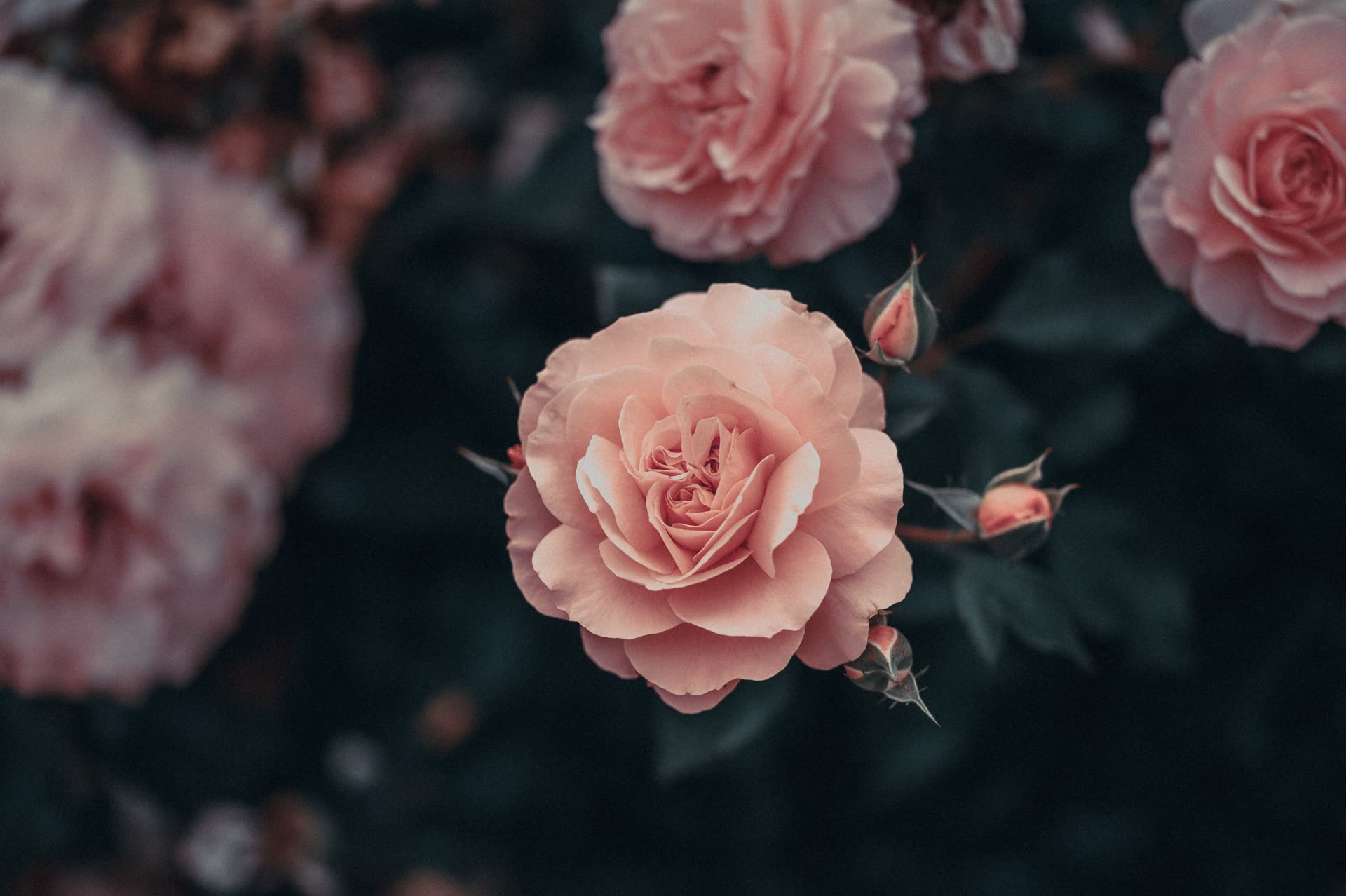
An image is the most common background for funeral slideshows. A subtle, calm image of flowers, a light photo of clouds or a gentle pattern can beautifully fill the space around the photos. Even better is when your loved one had a connection with a particular country or place (think of their favourite holiday, or a spot they always returned to) and a lovely photo of it can be found in your own archive or online.
Set that photo as the background and, if you like, apply 75% to 90% transparency to it. That way it remains clear what it shows, without competing with the main photo.
2. A colour
The simple, classic option: just a colour as the background. We often see light tones being used, and sometimes anthracite. Neutral colours usually feel right; very bright colours rarely suit the moment.
3. A colour gradient
A slightly more refined look can be created with a gradient from one colour to a somewhat lighter shade of that same colour. It feels a little less static and therefore a touch more modern. The direction of the gradient can also be set at a slight angle, which can give a lovely effect.
Transparency, shadows and borders
As mentioned above, we prefer to always apply a certain amount of transparency to the background. It makes the background lighter, so the main photo comes forward. The main photo is, of course, where you want the attention, and a busy background image can disturb that. Make the background lighter (with transparency) and you create calm in the overall picture.
There is an alternative that works in some situations. If you use no (or little) transparency on the background, you can add a light shadow to the main photo on a slide. The boundary between the background and the main photo then becomes clearer, and the main photo stands out just that little bit more.
Another lovely effect is a border around the main photo: a wide white border (10 to 15 pixels) can create the look of a picture frame. This (combined with a shadow) is something to judge case by case: it can work well with a calm background, but is unlikely to work with a busy one.
Photos right up to the edge, or not?
When you let PowerPoint place photos automatically, it often puts them right against the edge and sometimes even enlarged. That raises a choice: place them against the edge or not?
Photos against the edge
If you choose this, the photo is placed so that it appears as large as possible on the projector or screen at the venue. These screens are often not the best quality, so a photo with fine details benefits from being shown as large as possible. That advantage is real, but from a design point of view we do not find it the most attractive option.
Photos slightly away from the edge
With a small margin all around, the photo sits more elegantly within the funeral slideshow. The background then runs nicely above and below the photo, and does not disappear whenever a portrait photo comes along that fills the whole screen. It looks more like one whole, and it looks more professional. That is why this is absolutely our preference, and we always place photos with a small margin from the edge.
It remains a matter of taste
Your taste, or your loved one's. The most important thing, of course, is that it feels fitting and works well. Making a funeral slideshow always stirs emotions, and with them come the opinions of everyone involved.
I may be giving tips here for a clean, professional result, while your loved one was a painter who always coloured outside the lines. The nicest thing is having the freedom to make it exactly the way you want.
In our tool you can adjust the background and all the settings entirely to your liking and download a ready-to-use PowerPoint file in no time. The file is also fully editable, so even after downloading you can make changes to give the funeral slideshow more character.
The background is only one choice. You will find all the steps together in the step by step plan for making a funeral presentation. Landscape photos fill the screen most beautifully; there is more about that in choosing photos for the funeral presentation.
Frequently asked questions
Where can I find examples of background images?
There are countless examples online, although a search for "funeral backgrounds" does not always produce the loveliest results. It can pay off to search for something specific you have in mind. Within our tool we offer a wide range of backgrounds to choose from, and you can also upload your own image and use it as a background.
How do colours work? How do I make the background terracotta, for example?
On the internet, and in programs such as PowerPoint, colours work with colour values (RGB/CMYK or HEX). To keep it simple: nowadays you can just ask Google or ChatGPT "What is the colour code for terracotta?" and you will get a six-character code with a hash in front of it.
That is the colour code you can use to set the background colour. Within our tool we also offer a wide range of colours to choose from, and you can enter this code to apply exactly the right colour to your funeral presentation.
I have already made something in PowerPoint, but I need help making it look good. What now?
The fact that you have already made something shows you are on the right track. You can recreate what you have made (based on the running order) in our tool and polish it there.
Or you can get in touch with us: feel free to send what you have made via WeTransfer or another file-sharing service, and we will discuss what we can do for you.